Install
Loading...
Ever landed on a site and wondered — is this Next.js? Framer? Shopify? Peek's new Tech Stack Detection instantly identifies the framework, CMS, and CSS library behind any website. No DevTools required.

You land on a beautifully built website.
The animations are smooth. The layout is sharp. The performance feels native. And the first thing your developer brain asks is: what is this thing built with?
You open DevTools. You dig through the <head>. You search for __NEXT_DATA__ or data-reactroot or a Webflow badge buried in the footer. Five minutes later, you have a partial answer and a mild headache.
There is a faster way. Peek's new Tech Stack Detection identifies the framework, CMS, CSS library, and website builder behind any site — instantly, right in the Overview tab.
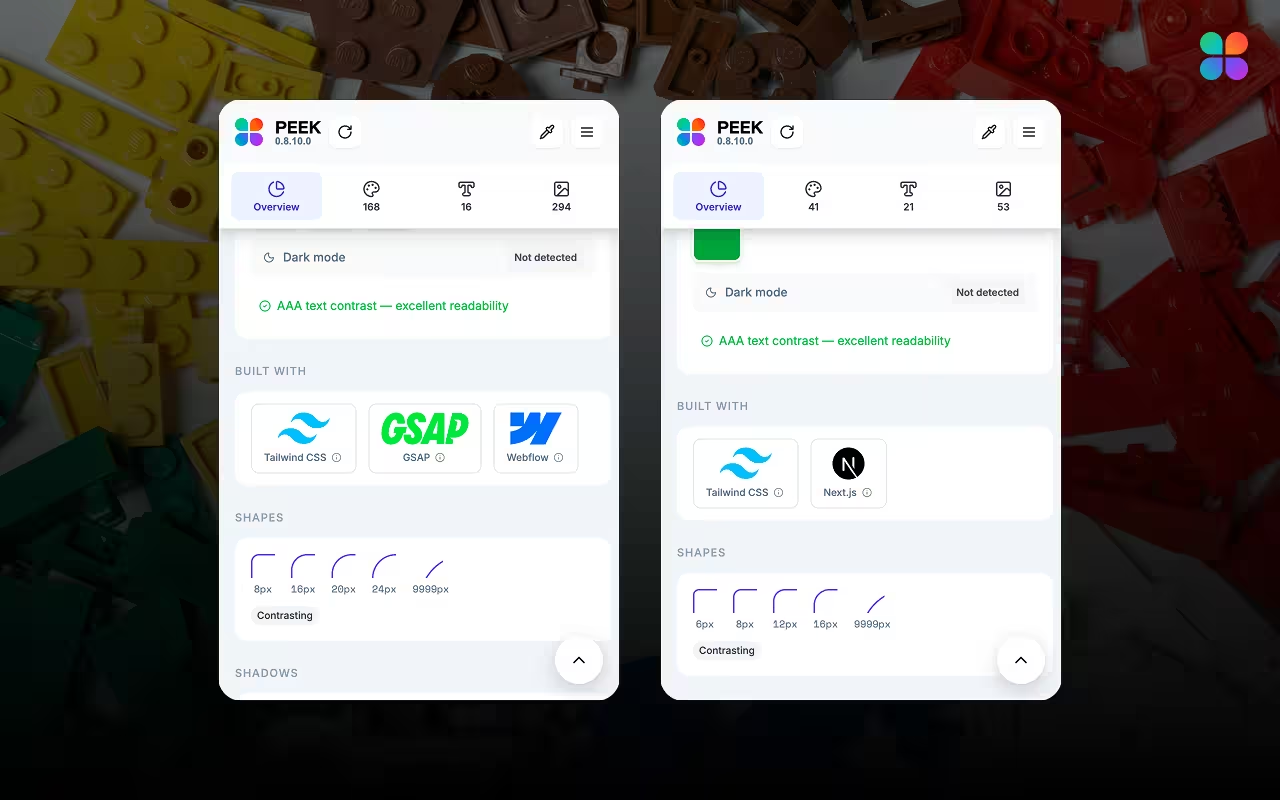
Open Peek on any website and the Overview tab now shows a Built With section — a clean row of icons with tooltips, each one representing a technology Peek detected on the page.
The current detection list covers the full modern web stack:
No manual digging. No browser extensions with 50 permissions. Just open Peek and look.
The whole process takes under ten seconds:
That's it. No JavaScript knowledge required. No hunting through source code.
Tools like BuiltWith and Wappalyzer have been the standard for tech stack detection for years. They work. But they come with trade-offs.
BuiltWith sends you to a separate website, requires you to paste a URL, and returns a report crammed with tracking pixels, CDNs, ad tech, and infrastructure details you probably don't care about. Wappalyzer is closer — it's a browser extension — but it's purely a tech detection tool. You install it for one job.
Peek's tech stack detection lives inside the same tool you already use to extract colors, typography, shadows, and design tokens. So when you're researching a competitor's site or studying a design you love, you get the full picture in one place: what it looks like, how it's designed, and what it's built with.
| Feature | BuiltWith | Wappalyzer | Peek |
|---|---|---|---|
| Tech Stack Detection | Very detailed | Yes | Key frameworks & builders |
| Works in the browser | Separate website | Extension | Extension |
| Color Extraction | No | No | Yes |
| Typography Extraction | No | No | Yes |
| Design Audit | No | No | Yes |
| Shadow & Token Extraction | No | No | Yes |
| Free to use | Limited | Limited | Completely free |
If you need a deep infrastructure audit — every third-party script, every CDN, every analytics tag — BuiltWith is the right tool. But if you're a designer or developer doing competitive research or design inspiration work, Peek gives you what actually matters, inside a workflow you're already in.
This is one of the most common questions designers ask when they see a slick marketing site. Framer and Webflow produce very similar visual output, but they have completely different workflows, pricing, and CMS capabilities. Knowing which one was used helps you decide whether to recommend it to a client.
Peek tells you in one click — no guessing, no Googling.
Spotting Tailwind CSS or Bootstrap on a site matters when you're trying to understand why the spacing and component patterns look the way they do. If a site uses Tailwind, its design tokens translate directly into the format Peek already exports. That's a direct workflow connection — see the stack, extract the tokens, use them.
For e-commerce competitive research, knowing whether a competitor's store is a custom Next.js build or a Shopify theme completely changes how you interpret the design. A Shopify theme has constraints. A custom build means anything is possible — including design patterns worth borrowing.
For vibe coders, tech stack detection has a particularly useful angle: matching your inspiration site's stack to your own build. See our Vibe Coding stack guide for how Peek fits into an AI development workflow.
If the site you love is built with Next.js + Tailwind, and you're also building with Next.js + Tailwind, the design tokens Peek extracts — colors, typography, shadows, border radius — map directly into your project. No conversion needed. The stack match makes the design data immediately usable.
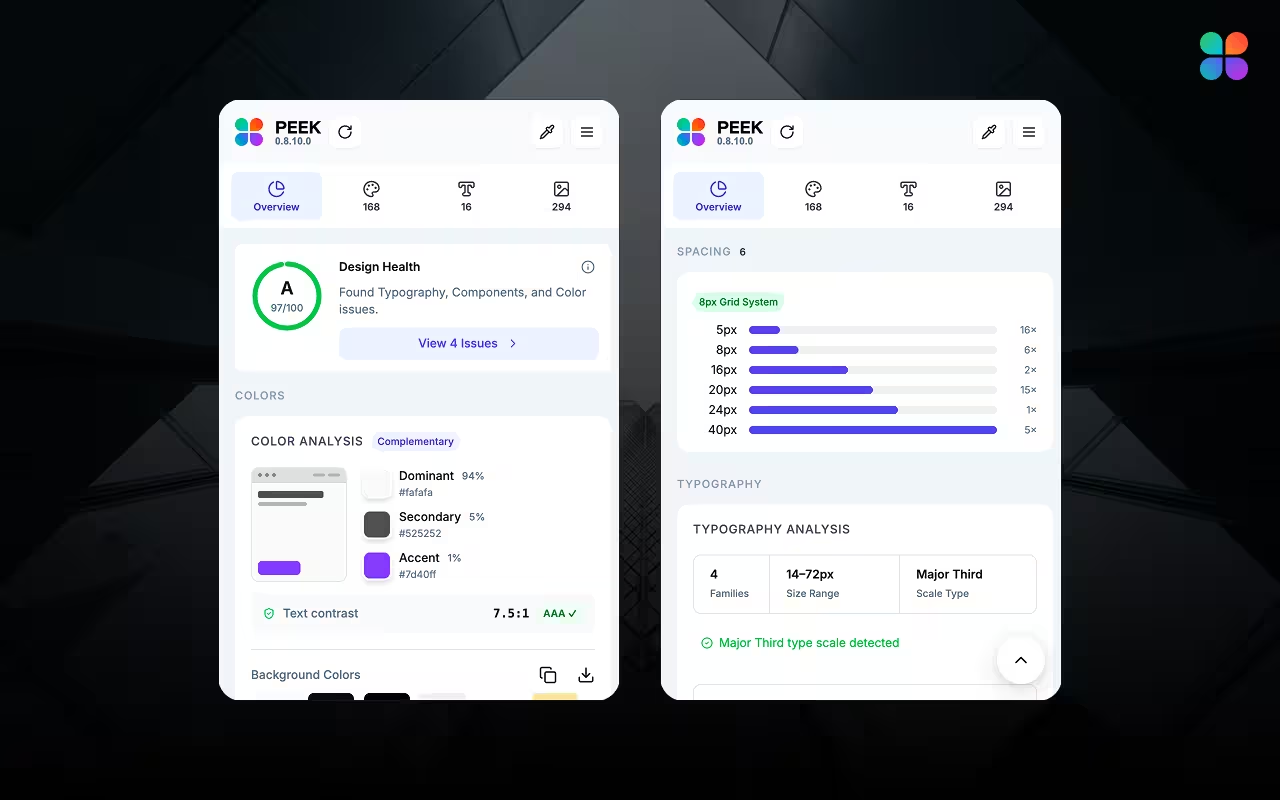
Tech Stack Detection is one of several new signals Peek surfaces in the redesigned Overview tab. Alongside the framework icons, you now also get:
The goal is simple: open Peek on any site and understand it completely — its design language and its technical foundation — without leaving the extension.
Peek detects technologies through multiple signals — DOM markers, global JavaScript variables, meta tags, and class name patterns. For major frameworks like React, Next.js, and Tailwind CSS, detection accuracy is very high. For some website builders that heavily obfuscate their output (like certain Wix configurations), detection may occasionally miss or misidentify.
No — Peek operates entirely in your browser and can only detect what is visible in the client-side code. Server-side technologies (Node.js, Python, databases, hosting providers) are not detectable from the browser. Peek focuses on the frontend stack: frameworks, meta-frameworks, CSS libraries, and website builders.
Peek works on any live website you navigate to in your browser. Simply visit the site, open Peek, and check the Overview tab. You cannot run detection on a URL without visiting it, as detection requires the page to be loaded.
Yes — Peek is completely free. Tech Stack Detection, Design Health Score, color and typography extraction, shadow tokens, and the full Design Audit are all available at no cost. All processing happens locally in your browser.
The next time you land on a site that stops you in your tracks, you don't need to open DevTools and play detective. Open Peek, check the Overview tab, and know instantly — what it's built with, how it's designed, and what tokens you can borrow.
Tech Stack Detection is live now in Peek v0.8.10.0 for Chrome and Microsoft Edge.