Stop Asking "What Font is This?" — A Better Way to Inspect Typography in 2026
Stop asking 'What font is this?' Learn how to identify fonts, extract typography systems, and get font weights, sizes, and line-heights from any website with Peek — the modern WhatFont alternative.
29 Nov 2025·9 min read
Khalid Hasan Zibon
For the last decade, designers have relied on the same workflow to identify font on website: click a browser extension, hover over a word, and see a small tooltip saying "Inter, 16px." But if you need to find what font a website is using — including weight, size, and line-height — these simple tools fall short.
Tools like WhatFont pioneered this, and Fonts Ninja refined it with beautiful UI and font-buying features. But in 2026, knowing the name of a font isn't enough.
Modern web typography isn't just about picking a font family. It's about fluid scales, line-height ratios, variable weights, and multi-script localization. Knowing that a headline is "Helvetica" doesn't help you understand why it looks good. You need to see the system behind it.
This is why we built Peek — to move beyond simple identification (shopping) and give you a complete typographic X-ray (engineering).
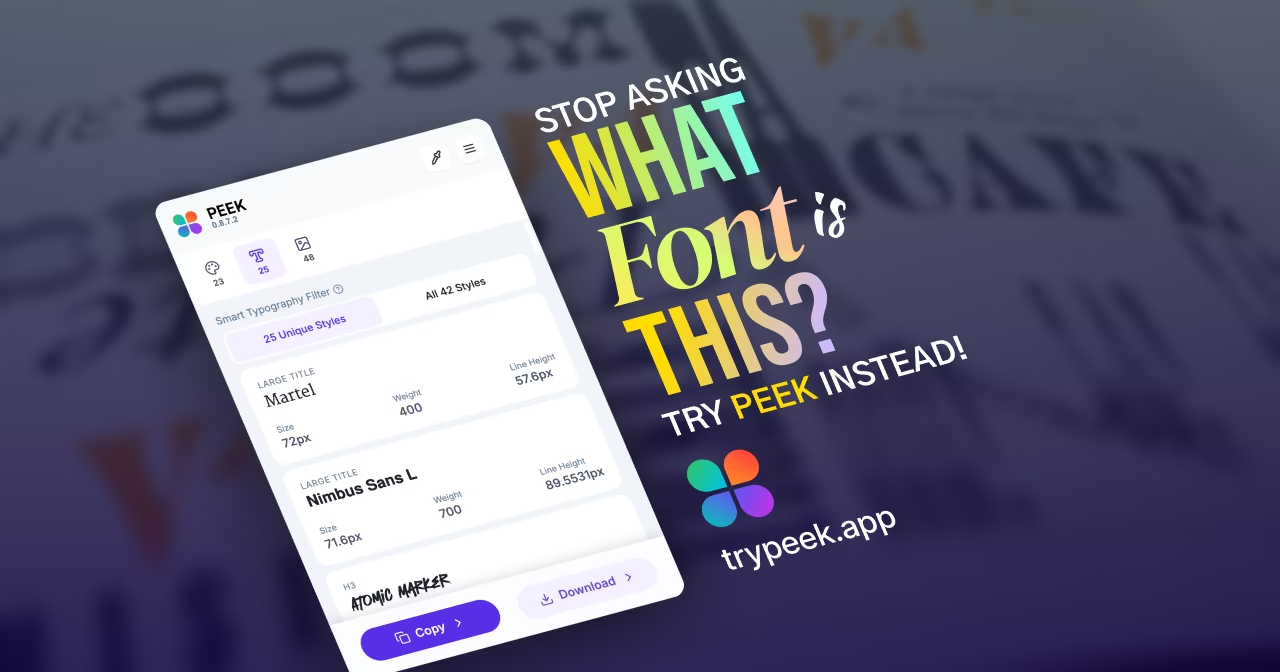
Peek's Types tab extracts the complete typography system, not just font names. Identify fonts, weights, sizes, and line-heights from any website.
The "Hover" Problem: Discovery vs. Implementation
Legacy tools were built for Discovery.
WhatFont tells you the name.
Fonts Ninja lets you "try" or "buy" the font.
This is great if you are shopping for a new typeface. But if you are a product designer or developer trying to audit a live site, these tools fall short. They treat every text element as an isolated island.
Hovering over elements one by one hides the big picture:
Where is the hierarchy? Which font is the H1, and which is the H2?
What are the ratios? How does the line-height change as the font size increases?
What about non-Latin scripts? How does the site handle Arabic or Bengali fallbacks?
Peek solves this by extracting the entire Typography System at once.
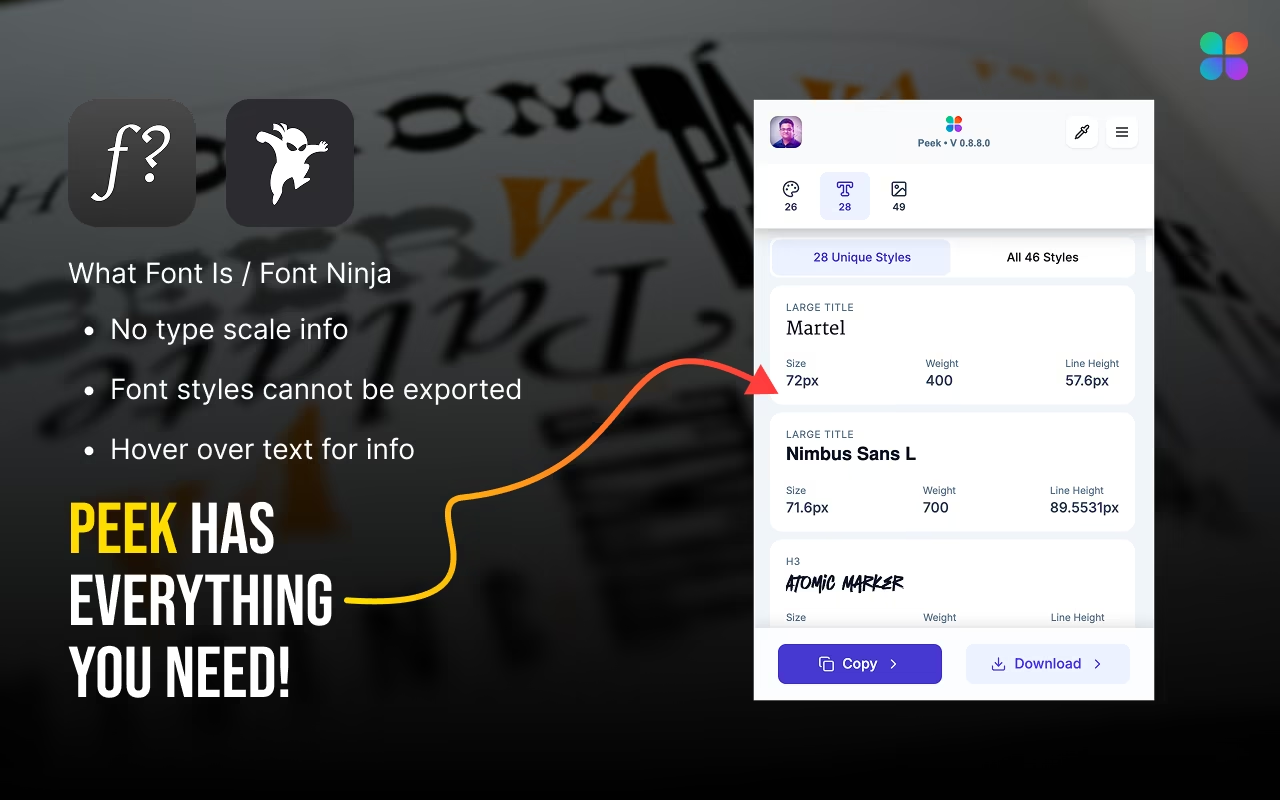
WhatFont vs Peek: The Complete Comparison
When you need to identify font on website, you have several options. Here's how Peek compares to the most popular font identification tools:
Feature
WhatFont
Fonts Ninja
Peek
Font Family Detection
Yes
Yes
Yes
Font Weight & Size
No
Limited
Complete
Line Height Extraction
No
No
Yes
Letter Spacing
No
No
Yes
Typography Hierarchy
No
No
Usage-based sorting
Multi-script Support
English only
English only
Arabic, Bengali, Greek, Hebrew, Cyrillic
Export to CSS/SCSS
No
No
Yes
Export to Tailwind
No
No
Yes
Font License Info
No
Yes (buy links)
Check manually
Bulk Typography View
Hover only
Hover only
Complete system view
While WhatFont and Fonts Ninja are great for shopping for fonts, Peek is built for extracting typography systems. If you're a designer or developer who needs to understand how a website's typography works — not just what fonts it uses — Peek is the clear choice.
Meet the "Types" Tab: Your Visual System
When you open Peek on a website, you don't just get a cursor tool; you get a dedicated Types Tab that aggregates every single font style used on the page.
Instead of hunting for styles, Peek presents them to you in a clean, organized list, sorted by usage frequency. This immediately reveals the site's visual hierarchy:
Primary Body: The style used most often (usually your body copy).
Headings: The distinct styles used for titles and subtitles.
Captions & Labels: The smaller utility styles.
This lets you reverse-engineer a site's type scale in seconds, not minutes. Try Peek's Types Tab now and see the complete typography system of any website.
Meet Peek's Type Tab — your visual type system that aggregates every font style used on the page. Extract fonts, weights, sizes, and line-heights instantly.
Feature Spotlight: Language-Aware Previews
The web is global, but most design tools are stuck in the US. If you inspect a website in Arabic, Hebrew, or Bengali with standard tools like Fonts Ninja, you often see the correct font name but a generic "Lorem Ipsum" preview in English. This is useless for judging the actual aesthetics of the typeface in its native script.
Peek is different. It detects the content of the page and generates Language-Aware Previews.
Browsing a site in Arabic? Peek previews the font using Arabic script.
Browsing in Russian? You see Cyrillic characters.
Browsing in Greek? You see the actual Greek glyphs.
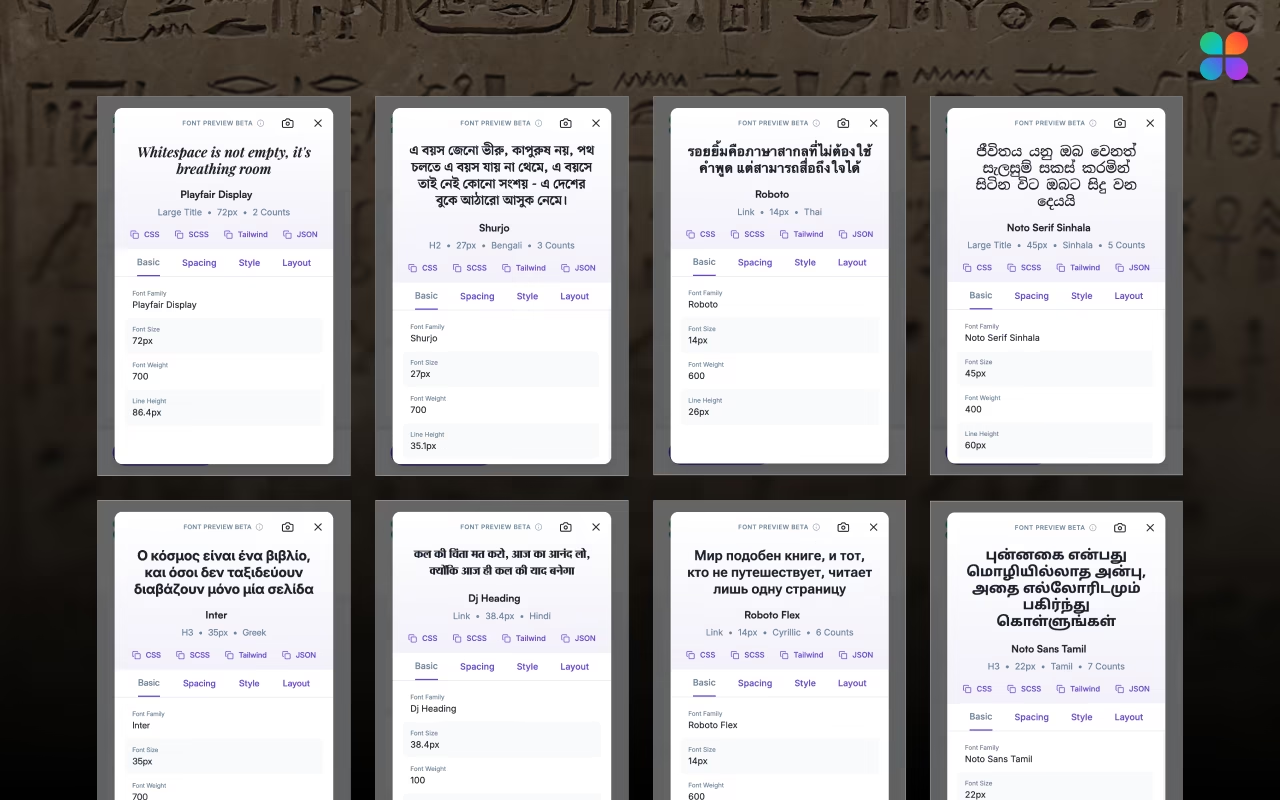
Peek's font preview modal displays fonts in their native scripts — Latin, Bangla, Thai, Sinhala, Greek, Hindi, Cyrillic, and Tamil — instead of generic English placeholders.
This feature is critical for designers working on multilingual brands who need to verify that a font supports the correct character sets and ligatures before committing to it.
From Inspection to Implementation (Smart Code)
Finding a great font combination is only useful if you can use it. This is where Peek leaves other tools in the dust.
While other extensions might let you "bookmark" a font, Peek embraces the "Smart Code" philosophy. Once you find a style you love, you can copy the complete token definition. Whether you need raw CSS, SCSS mixins, or a Tailwind CSS configuration, Peek formats the data so you can drop it directly into your project.
Example: Extracting Typography as CSS Variables
When you extract typography with Peek, you get ready-to-use code with complete typography tokens. Here's an example of the actual CSS output from Peek:
css
1/* Created by Peek from www.skeptic.com */2/* Version: 0.8.8.0 */3/* Learn more: https://trypeek.app */45/* Typography Tokens */6:root{7/* Font Families */8--font-martel: Martel, sans-serif;9--font-nimbus-sans-l:'Nimbus Sans L', sans-serif;10--font-atomic-marker:'Atomic Marker', sans-serif;1112/* Font Sizes */13--text-12:12px;14--text-16:16px;15--text-18:18px;16--text-20:20px;17--text-27:27px;18--text-31:31px;19--text-45:45px;20--text-61:61px;21--text-72:72px;2223/* Font Weights */24--font-400:400;25--font-700:700;2627/* Line Heights */28--leading-16:16px;29--leading-18:18.2px;30--leading-23:23px;31--leading-24:24px;32--leading-27:27.462px;33--leading-31:31.2px;34--leading-48:47.6716px;35--leading-54:53.8004px;36--leading-76:76.4307px;37--leading-93:93.1352px;3839/* Letter Spacing */40--tracking-neg1.44:-1.44px;41--tracking-neg0.72:-0.72px;42--tracking-072:0.72px;43--tracking-084:0.84px;44}4546/* Typography Utilities */47.font-martel{48font-family:var(--font-martel);49}5051.text-16{52font-size:var(--text-16);53}5455.font-400{56font-weight:var(--font-400);57}5859.leading-24{60line-height:var(--leading-24);61}
Or export directly to Tailwind Config Format:
javascript
1// Created by Peek from www.example.com2// Version: 0.8.8.03// Learn more: https://trypeek.app45@import"tailwindcss";67@theme {8/* Font Families */9--font-martel:Martel, sans-serif;10--font-nimbus-sans-l:'Nimbus Sans L', sans-serif;11--font-atomic-marker:'Atomic Marker', sans-serif;1213/* Font Sizes */14--text-12: 12px;15--text-16: 16px;16--text-18: 18px;17--text-20: 20px;18--text-27: 27px;19--text-31: 31px;20--text-45: 45px;21--text-61: 61px;22--text-72: 72px;2324/* Line Heights */25--leading-16: 16px;26--leading-18:18.2px;27--leading-23: 23px;28--leading-24: 24px;29--leading-27:27.462px;30--leading-31:31.2px;31--leading-48:47.6716px;32--leading-54:53.8004px;33--leading-76:76.4307px;34--leading-93:93.1352px;3536/* Font Weights */37--font-400:400;38--font-700:700;39}4041/* Usage Examples */42/* Typography: font-[familyName], text-[size], leading-[height] */43/* Example: font-martel */44/* Example: text-72 */
Don't just see the font. Ship the font.
How to Audit Typography Like a Pro (In 30 Seconds)
Here is a quick workflow to try on your next inspiration hunt:
Navigate to a typography-heavy site (like The New York Times, Medium, or Stripe).
Open Peek and click the Types tab.
Scan the Hierarchy: Look at the top 3 most used styles. This is their core system.
Check the Ratios: Notice how the line-height tightens (gets smaller relative to font size) as the text gets larger.
Export: Click the copy icon to grab the CSS variable for their body copy.
Copy or download all text styles at once with Peek Chrome Extension — ready to use in your project. Extract font styles from any website instantly.
To find what font a website is using, install Peek Chrome Extension and open it on any website. The Types tab automatically extracts all font families, sizes, weights, and line-heights used on the page. Unlike tools like WhatFont that only show font names when you hover, Peek gives you the complete typography system at once.
How do I identify font weight and size from a website?
Peek extracts font weight and size automatically. When you open the Types tab, you'll see each typography style with its complete properties: font family, size (in px, rem, or em), weight (100-900), line-height, and letter-spacing. You can copy these values directly as CSS variables or Tailwind config.
What's the difference between WhatFont and Peek?
WhatFont shows font names when you hover over text. Peek extracts the complete typography system — fonts, sizes, weights, line-heights, and letter-spacing — in an organized view. Peek also supports multi-script fonts (Arabic, Bengali, Greek, etc.) and exports to CSS, SCSS, or Tailwind formats. WhatFont is for shopping; Peek is for engineering.
Can I extract typography styles for my design system?
Yes! Peek is perfect for extracting typography styles for design systems. You can export all typography tokens as CSS variables, SCSS maps, or Tailwind configuration. This makes it easy to reverse-engineer typography from reference websites and build your own design system based on proven patterns.
Does Peek work with variable fonts?
Yes, Peek extracts variable font information including the weight axis. When you inspect a site using variable fonts, Peek shows the actual weight values being used (e.g., 450, 600) rather than just named weights (normal, bold).
How do I check font license information?
Peek extracts font family names, but font license checking should be done separately. Once you know the font name from Peek, visit the font foundry's website or use tools like Font Squirrel's Webfont Generator to verify licensing. For commercial use, always check the font's license terms directly with the foundry.
Can I identify fonts on any website?
Yes! Peek works on any website you visit. Simply navigate to the site, click the Peek extension icon, and switch to the Types tab. Peek automatically extracts all typography information from the page, including fonts used in CSS, inline styles, and even dynamically loaded content.
Conclusion
Typography is 90% of the web. You deserve a tool that treats it with that level of importance. Stop settling for simple tooltips and start seeing the system.

 Install